To activate your page and customize it, you need to create the datatelling.
Here is the step-by-step process:
1. To create this page, first select the data of your choice from the “Analyze” tab of your survey.
In the “Analyze” tab, you can pin :
-
Heatmap (overall or by dimension)
-
External Benchmark data
-
Verbatims
-
Word clouds
You can also add photos and videos via My Public Page → Photos/Videos
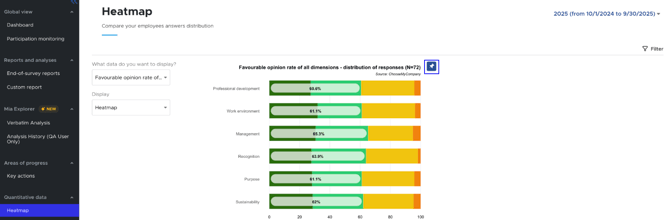
Click on the pins to select a data item. The data will be saved once the pin turns blue.
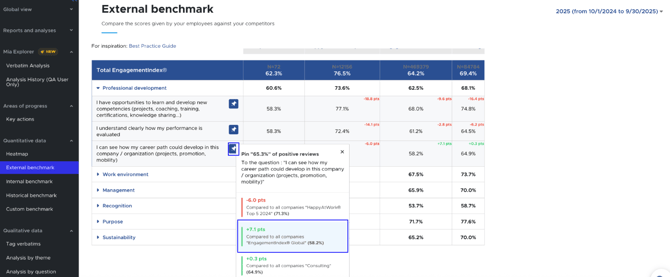
For the external benchmark, click on the pin of the question you choose, and also on the benchmark you want to compare yourself with. The data will not be considered otherwise.
2. Once all the desired data is selected, go to "My public page → ESG datatelling".
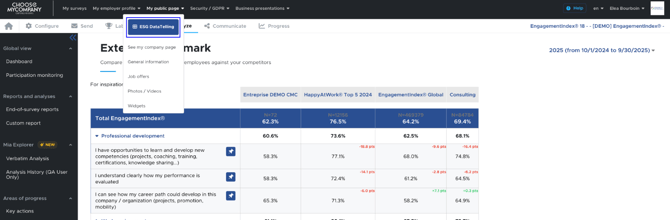
3. Choose the relevant population as well as the year.
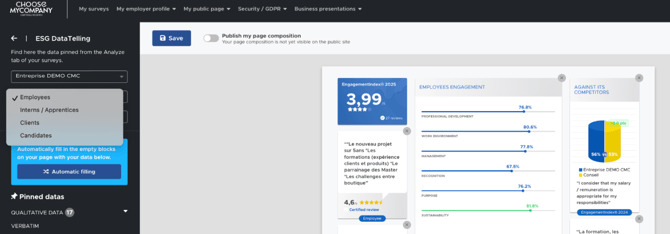
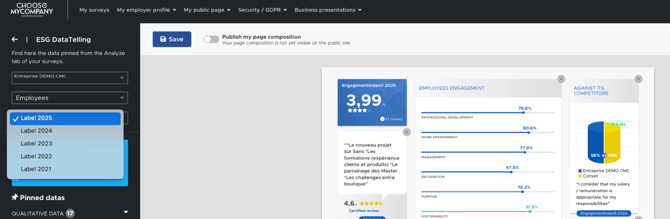
Attention
A year will only appear if data from that year has been selected.
4. Arrange the data located on the left side.
By clicking on "Auto-fill" or by dragging and dropping the data from the left onto the section of your choice.
5. Save and publish.
Attention
It is only possible to publish the page once you have at least 8 elements. Below that, the "publish my page layout" button will be greyed out.
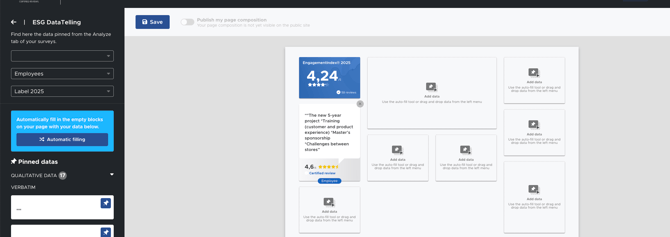
However, you can add as many elements as you want.
The public page remains the same from one year to the next if it has not been updated by you.
It is not possible to access the datatelling history from previous years. We encourage you to download it.
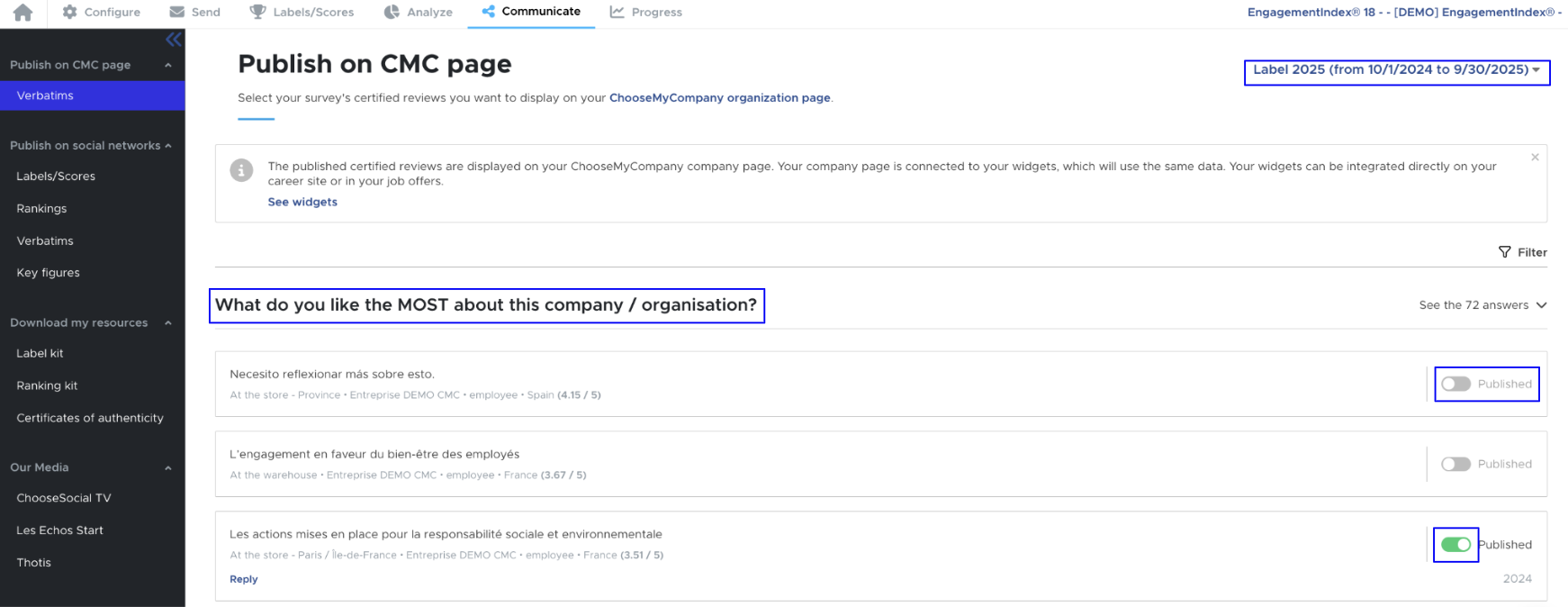
How to add more verbatim responses?
In addition to the verbatim responses included in your datatelling, you can add more verbatim responses from different years.
To do this, go to the “Communicate” tab of your survey, under the “Publish on CMC page" section.
How to update your company information
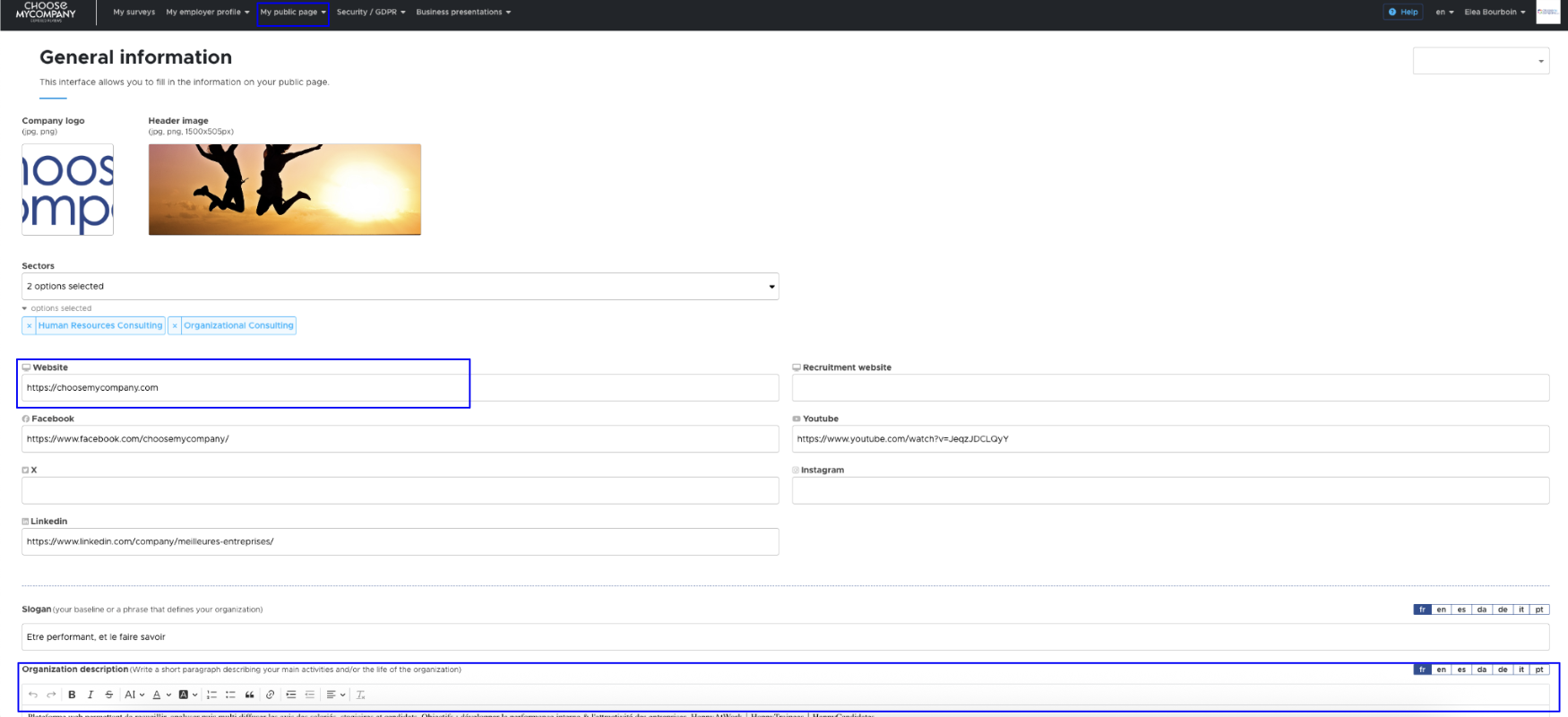
To update your company description, logo, or websites, go to “My public page → General Information.”