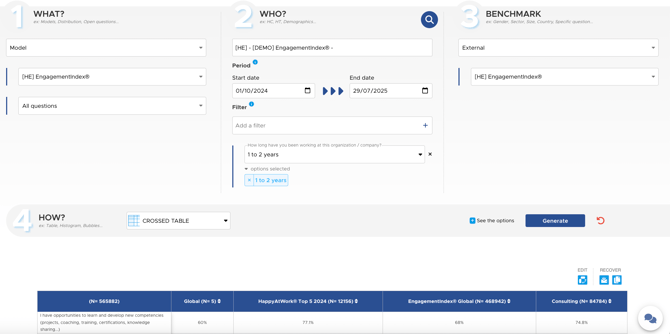
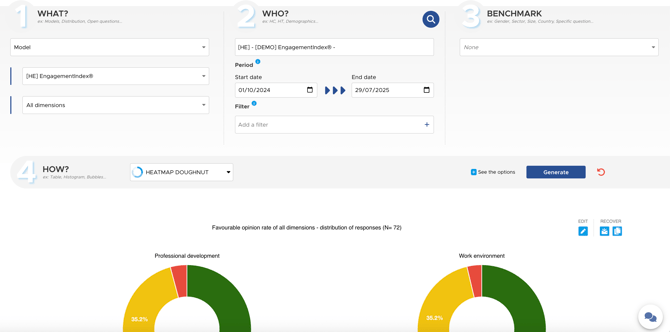
The Data Explorer is an advanced analysis tool that allows you to dive even deeper into your data.
We recommend starting your analysis using our standard tools, and then turning to the Data Explorer if you wish to explore your results in greater depth.
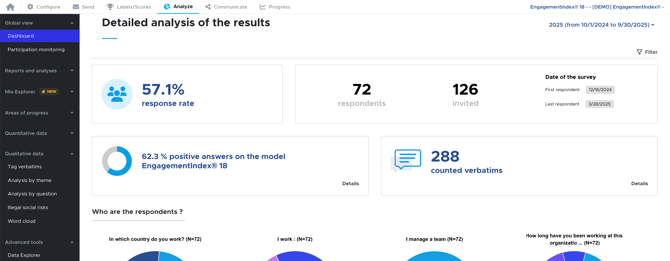
You can find this tool under the "Analyze" tab → "Advanced tools".
How it works
The Data Explorer allows for more advanced segmentation and enables you to create your own custom tables. You can use it, for example, to integrate these tables directly into your analysis.
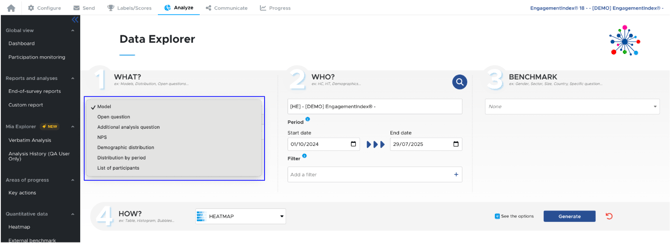
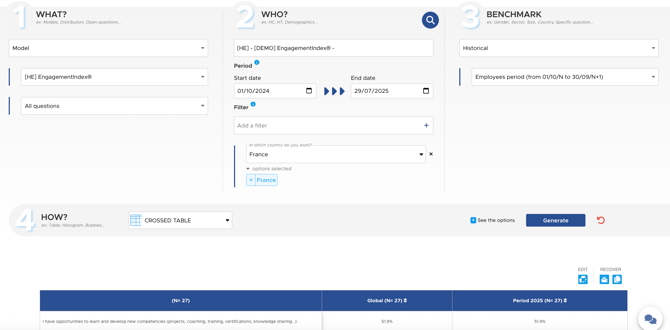
- What : Specify the data you want to analyze.
- You need to choose what you want to analyze (closed-ended questions, open-ended questions, additional questions, etc.).
-
- Next, refine what you want to view. For example, if you're analyzing model questions, select the relevant model (e.g., HappyIndex®AtWork or WeImpact®Index). Only the models included in your contract will be available for selection.
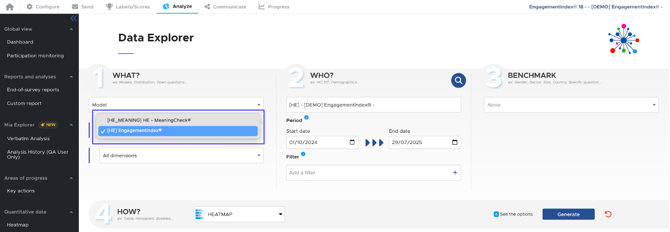
-
- Then refine even further, for example by analyzing by question or by dimension.
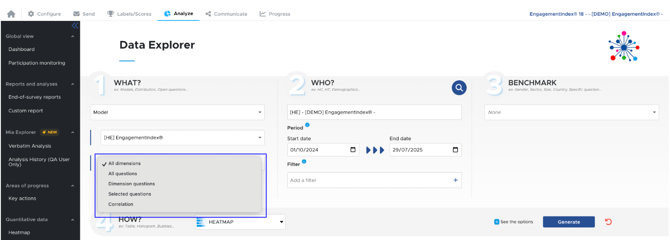
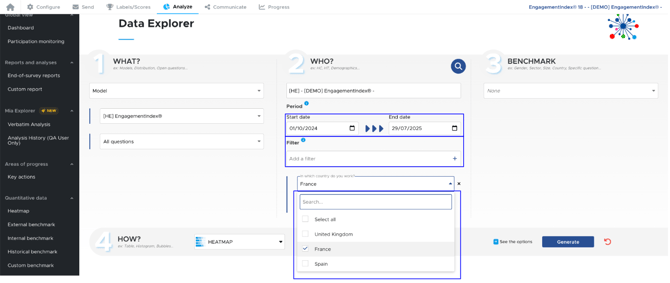
- Who : Select the population for which you want to obtain results.
- Specify the start and end dates.
- Choose a population (for example, a specific department or a country).
- Benchmark : Choose one of the three benchmarks offered:
-
Internal, to compare your results based on a demographic question
-
External, to compare your results against the competition
- Historical, to compare your results over different periods
-
For example, here with the internal benchmark.
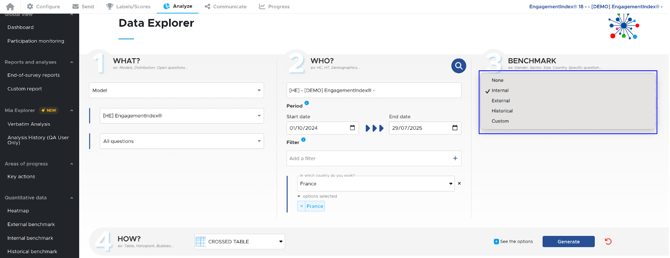
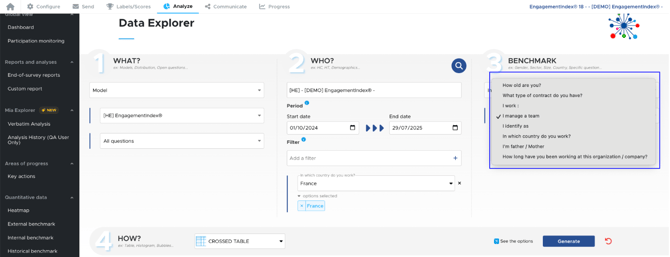

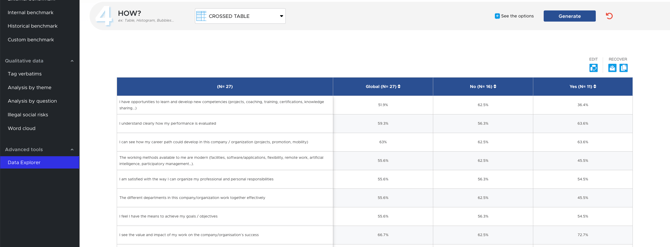
Here, after clicking on "Generate," we obtain the results for all the questions of the EngagementIndex® model, for the 2025 campaign, in France, with a breakdown between managers and non-managers.
Examples of Use
Here are a few examples of how to use the Data Explorer.
- Compare the results of your different student waves
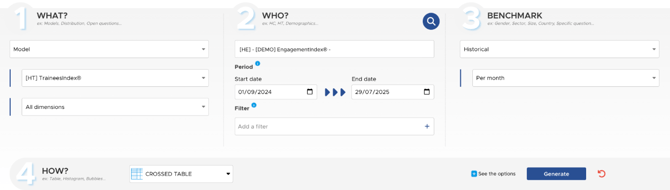
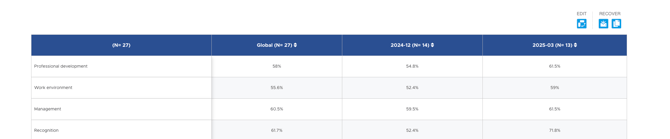
Example: Analyze the results of your HappyIndex®Trainee survey month by month (with a minimum of 5 respondents).
- Compare multiple periods within a population
Example: Compare the results for France between this campaign and the previous one.
- Add filters in the external benchmark
Example: Compare the results of your new employees against the competition.
The filter is applied only to your results and not to the benchmarks.